> For the complete documentation index, see [llms.txt](https://docs.aspis.finance/llms.txt). Markdown versions of documentation pages are available by appending `.md` to page URLs; this page is available as [Markdown](https://docs.aspis.finance/step-by-step-guids/for-investors/withdrawing-from-a-vault.md).
# Withdrawing from a Vault
Here are the instructions for withdrawing from a vault.
#### **Step 1: Access Your Vault Dashboard**
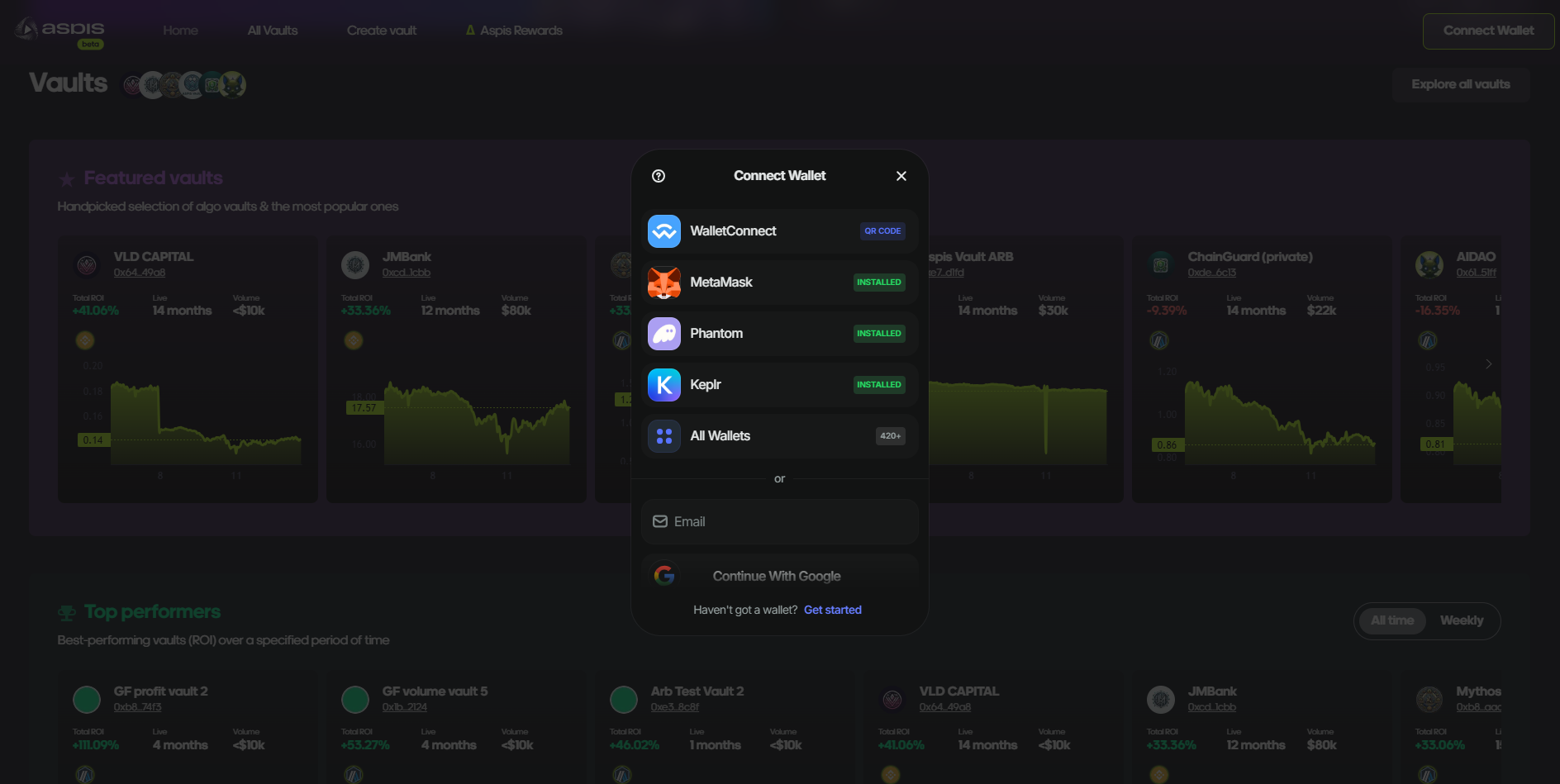
a. **Log into the Aspis V2 Platform**: [Aspis V2](https://v2.aspis.finance/)
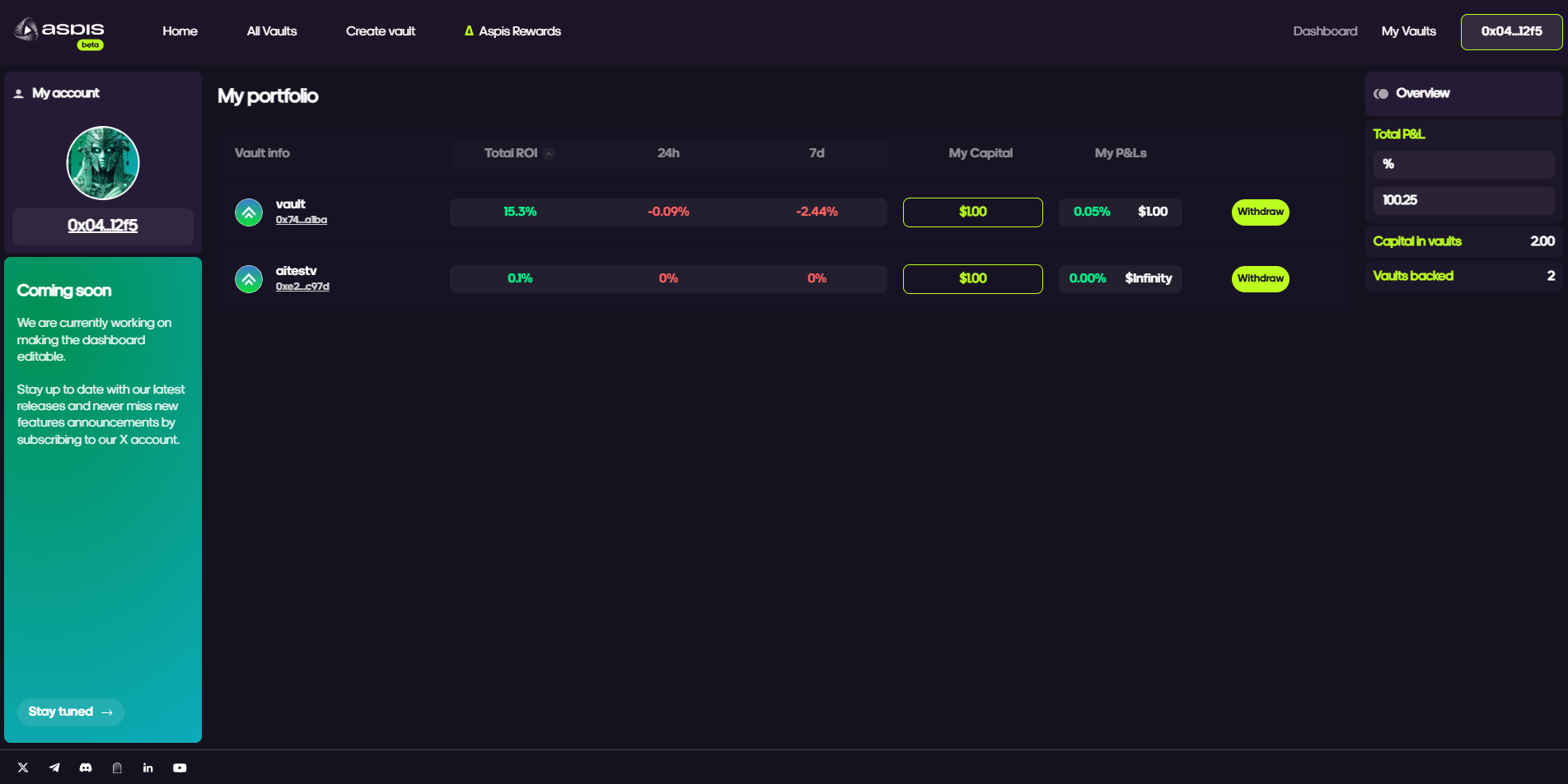
b. Go to the **Dashboard** and locate your active Vaults.
c. Select the **Vault** from which you want to **withdraw funds**.
#### **Step 2: Withdraw Funds**
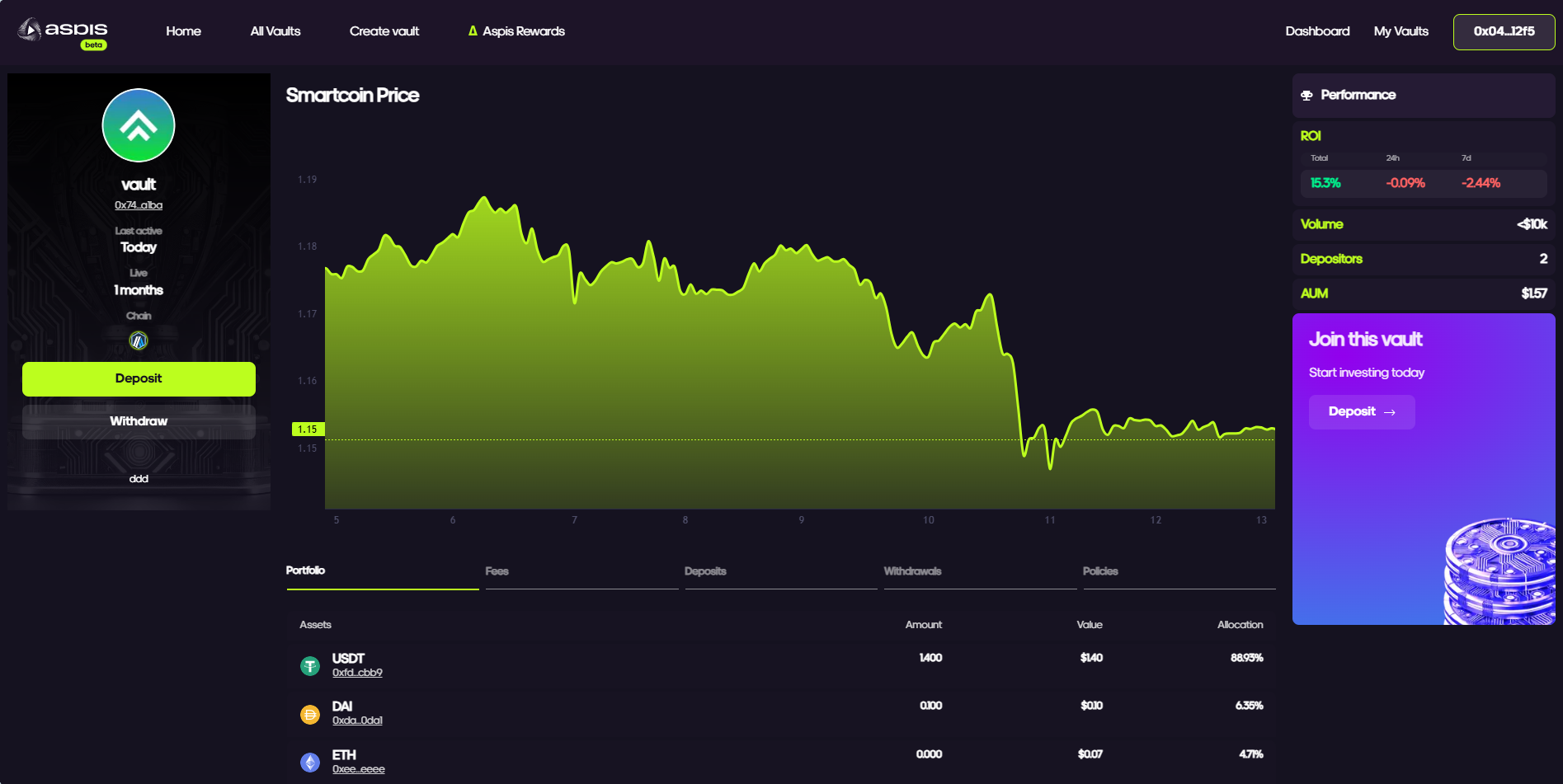
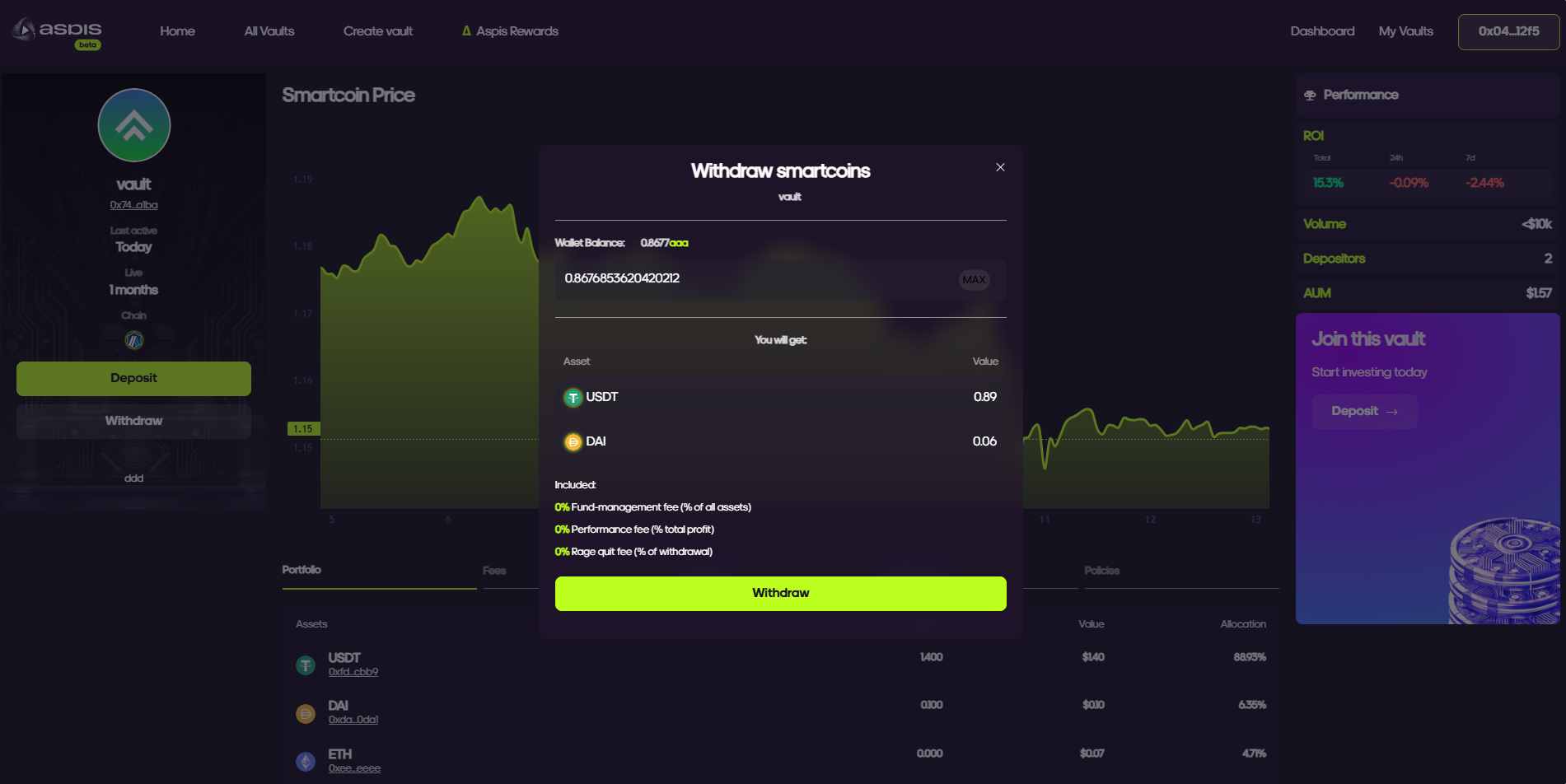
a. Click the **“Withdraw”** button.
b. Choose the **cryptocurrency** and enter the amount you wish to withdraw.
c. Click **“Withdraw”**, then confirm the transaction in your **Web3 wallet**.
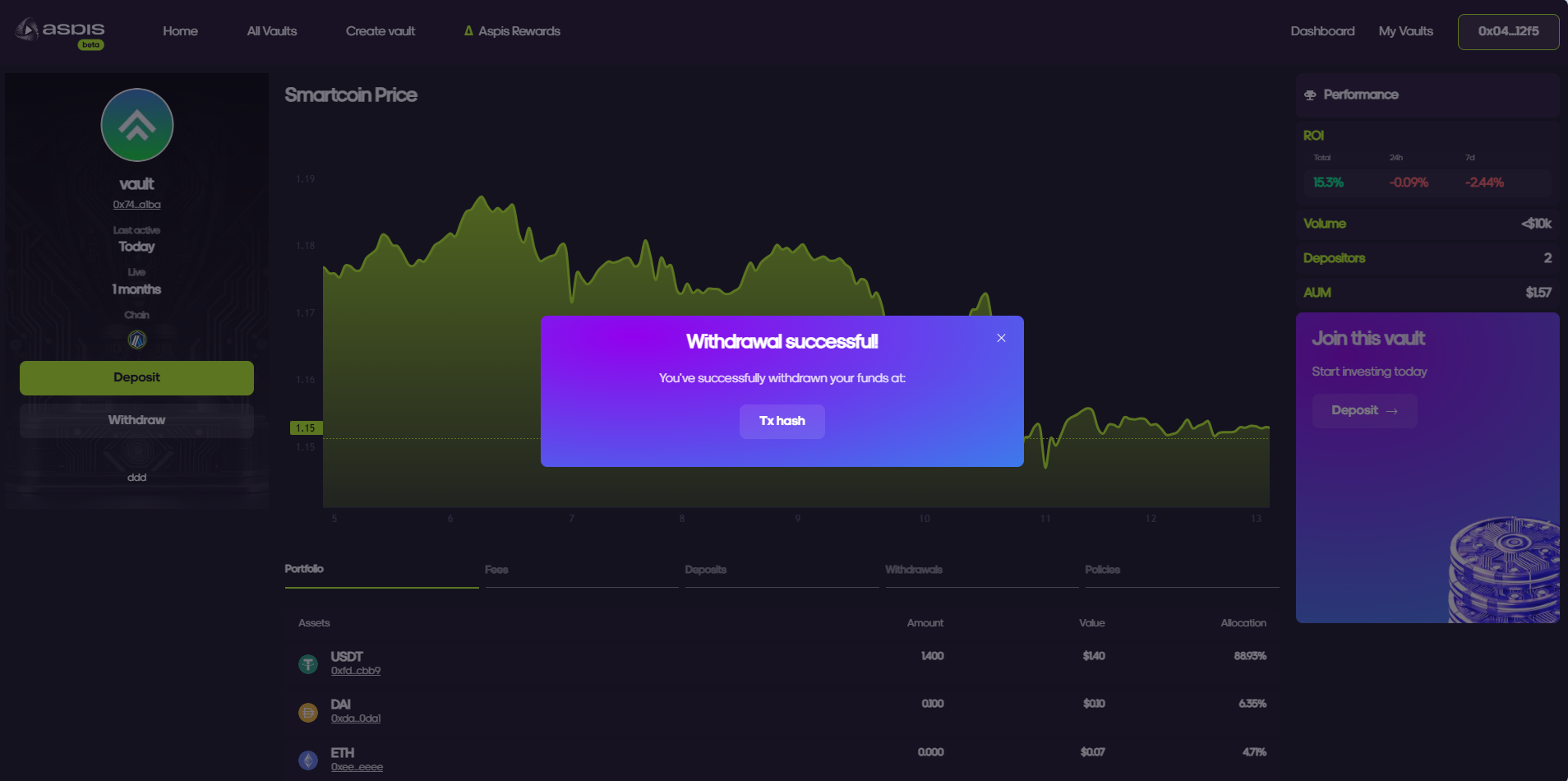
d. Wait for the transaction to be processed on-chain.
e. Once completed, check your wallet balance to confirm the withdrawal.